Hi, in today’s tutorial I will show you how to send an image to an server using POST method in ANDROID.
Uploading an image to server is a basic requirement in many of our usual applications.
Sending data to server which is using a PHP Script is already explained in this example .
Now in this example I will show you how to send an image file.
For that first we have to read the file, put it in nameValuePairs and then send using HttpPost.
Now can we quickly go to the code.
This is the main java file UploadImage.java
Now download a file from here which encodeBytes in Base64 Format. Put this file in the same package of UploadImage.java. See the screenshot.
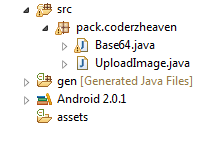
Now the server part.
Create a folder named Upload_image_ANDROID in your htdocs folder and inside that create a file named upload_image.php and copy this code into it.
Now run your program and check the folder in which your php file resides.
Note: Make sure your server is running.
Here I am uploading the icon image itself.
If you want to upload another file in your SDCARD you have to change this line to give the exact path
and this tutorial explains how to put file inside your emulator SDCARD
Please comment if you didn’t get it right or you like this post.
Refferenced from : http://coderzheaven.com/2011/04/android-upload-an-image-to-a-server/
Uploading an image to server is a basic requirement in many of our usual applications.
Sending data to server which is using a PHP Script is already explained in this example .
Now in this example I will show you how to send an image file.
For that first we have to read the file, put it in nameValuePairs and then send using HttpPost.
Now can we quickly go to the code.
This is the main java file UploadImage.java
1 | package pack.coderzheaven; |
2 |
3 | import java.io.ByteArrayOutputStream; |
4 | import java.io.IOException; |
5 | import java.io.InputStream; |
6 | import java.util.ArrayList; |
7 | import org.apache.http.HttpResponse; |
8 | import org.apache.http.NameValuePair; |
9 | import org.apache.http.client.HttpClient; |
10 | import org.apache.http.client.entity.UrlEncodedFormEntity; |
11 | import org.apache.http.client.methods.HttpPost; |
12 | import org.apache.http.impl.client.DefaultHttpClient; |
13 | import org.apache.http.message.BasicNameValuePair; |
14 | import android.app.Activity; |
15 | import android.graphics.Bitmap; |
16 | import android.graphics.BitmapFactory; |
17 | import android.os.Bundle; |
18 | import android.widget.Toast; |
19 |
20 | public class UploadImage extends Activity { |
21 | InputStream inputStream; |
22 | @Override |
23 | public void onCreate(Bundle icicle) { |
24 | super.onCreate(icicle); |
25 | setContentView(R.layout.main); |
26 |
27 | Bitmap bitmap = BitmapFactory.decodeResource(getResources(),R.drawable.icon); ByteArrayOutputStream stream = new ByteArrayOutputStream(); |
28 | bitmap.compress(Bitmap.CompressFormat.PNG, 90, stream); //compress to which format you want. |
29 | byte [] byte_arr = stream.toByteArray(); |
30 | String image_str = Base64.encodeBytes(byte_arr); |
31 | ArrayList<NameValuePair> nameValuePairs = new ArrayList<NameValuePair>(); |
32 |
33 | nameValuePairs.add(new BasicNameValuePair("image",image_str)); |
34 |
35 | try{ |
36 | HttpClient httpclient = new DefaultHttpClient(); |
37 | HttpPost httppost = new HttpPost("http://10.0.2.2/Upload_image_ANDROID/upload_image.php"); |
38 | httppost.setEntity(new UrlEncodedFormEntity(nameValuePairs)); |
39 | HttpResponse response = httpclient.execute(httppost); |
40 | String the_string_response = convertResponseToString(response); |
41 | Toast.makeText(UploadImage.this, "Response " + the_string_response, Toast.LENGTH_LONG).show(); |
42 | }catch(Exception e){ |
43 | Toast.makeText(UploadImage.this, "ERROR " + e.getMessage(), Toast.LENGTH_LONG).show(); |
44 | System.out.println("Error in http connection "+e.toString()); |
45 | } |
46 | } |
47 |
48 | public String convertResponseToString(HttpResponse response) throws IllegalStateException, IOException{ |
49 |
50 | String res = ""; |
51 | StringBuffer buffer = new StringBuffer(); |
52 | inputStream = response.getEntity().getContent(); |
53 | int contentLength = (int) response.getEntity().getContentLength(); //getting content length….. |
54 | Toast.makeText(UploadImage.this, "contentLength : " + contentLength, Toast.LENGTH_LONG).show(); |
55 | if (contentLength < 0){ |
56 | } |
57 | else{ |
58 | byte[] data = new byte[512]; |
59 | int len = 0; |
60 | try |
61 | { |
62 | while (-1 != (len = inputStream.read(data)) ) |
63 | { |
64 | buffer.append(new String(data, 0, len)); //converting to string and appending to stringbuffer….. |
65 | } |
66 | } |
67 | catch (IOException e) |
68 | { |
69 | e.printStackTrace(); |
70 | } |
71 | try |
72 | { |
73 | inputStream.close(); // closing the stream….. |
74 | } |
75 | catch (IOException e) |
76 | { |
77 | e.printStackTrace(); |
78 | } |
79 | res = buffer.toString(); // converting stringbuffer to string….. |
80 |
81 | Toast.makeText(UploadImage.this, "Result : " + res, Toast.LENGTH_LONG).show(); |
82 | //System.out.println("Response => " + EntityUtils.toString(response.getEntity())); |
83 | } |
84 | return res; |
85 | } |
86 | } |
Upload Image
Now the server part.
Create a folder named Upload_image_ANDROID in your htdocs folder and inside that create a file named upload_image.php and copy this code into it.
1 | <?php |
2 | $base=$_REQUEST['image']; |
3 | $binary=base64_decode($base); |
4 | header('Content-Type: bitmap; charset=utf-8'); |
5 | $file = fopen('uploaded_image.jpg', 'wb'); |
6 | fwrite($file, $binary); |
7 | fclose($file); |
8 | echo 'Image upload complete!!, Please check your php file directory……'; |
9 | ?> |
Note: Make sure your server is running.
Here I am uploading the icon image itself.
If you want to upload another file in your SDCARD you have to change this line to give the exact path
Bitmap bitmap = BitmapFactory.decodeResource(getResources(),R.drawable.icon);For example if I have to upload a file residing in my SDCARD I would change the path like this.
Bitmap bitmap = BitmapFactory.decodeFile(“/sdcard/android.jpg”);This tutorial explains how to create an SDCARD and start the emulator with the SDCARD
and this tutorial explains how to put file inside your emulator SDCARD
Please comment if you didn’t get it right or you like this post.
Refferenced from : http://coderzheaven.com/2011/04/android-upload-an-image-to-a-server/


No comments:
Post a Comment