Thursday, 25 August 2011

Upload an image to a server in Android

Hi, in today’s tutorial I will show you how to send an image to an server using POST method in ANDROID.

Uploading an image to server is a basic requirement in many of our usual applications.

Sending data to server which is using a PHP Script is already explained in this example .

Now in this example I will show you how to send an image file.

For that first we have to read the file, put it in nameValuePairs and then send using HttpPost.

Now can we quickly go to the code.

This is the main java file UploadImage.java

1package pack.coderzheaven;
2
3import java.io.ByteArrayOutputStream;
4import java.io.IOException;
5import java.io.InputStream;
6import java.util.ArrayList;
7import org.apache.http.HttpResponse;
8import org.apache.http.NameValuePair;
9import org.apache.http.client.HttpClient;
10import org.apache.http.client.entity.UrlEncodedFormEntity;
11import org.apache.http.client.methods.HttpPost;
12import org.apache.http.impl.client.DefaultHttpClient;
13import org.apache.http.message.BasicNameValuePair;
14import android.app.Activity;
15import android.graphics.Bitmap;
16import android.graphics.BitmapFactory;
17import android.os.Bundle;
18import android.widget.Toast;
19
20public class UploadImage extends Activity {
21 InputStream inputStream;
22 @Override
23 public void onCreate(Bundle icicle) {
24 super.onCreate(icicle);
25 setContentView(R.layout.main);
26
27 Bitmap bitmap = BitmapFactory.decodeResource(getResources(),R.drawable.icon); ByteArrayOutputStream stream = new ByteArrayOutputStream();
28 bitmap.compress(Bitmap.CompressFormat.PNG, 90, stream); //compress to which format you want.
29 byte [] byte_arr = stream.toByteArray();
30 String image_str = Base64.encodeBytes(byte_arr);
31 ArrayList<NameValuePair> nameValuePairs = new ArrayList<NameValuePair>();
32
33 nameValuePairs.add(new BasicNameValuePair("image",image_str));
34
35 try{
36 HttpClient httpclient = new DefaultHttpClient();
37 HttpPost httppost = new HttpPost("http://10.0.2.2/Upload_image_ANDROID/upload_image.php");
38 httppost.setEntity(new UrlEncodedFormEntity(nameValuePairs));
39 HttpResponse response = httpclient.execute(httppost);
40 String the_string_response = convertResponseToString(response);
41 Toast.makeText(UploadImage.this, "Response " + the_string_response, Toast.LENGTH_LONG).show();
42 }catch(Exception e){
43 Toast.makeText(UploadImage.this, "ERROR " + e.getMessage(), Toast.LENGTH_LONG).show();
44 System.out.println("Error in http connection "+e.toString());
45 }
46 }
47
48 public String convertResponseToString(HttpResponse response) throws IllegalStateException, IOException{
49
50 String res = "";
51 StringBuffer buffer = new StringBuffer();
52 inputStream = response.getEntity().getContent();
53 int contentLength = (int) response.getEntity().getContentLength(); //getting content length…..
54 Toast.makeText(UploadImage.this, "contentLength : " + contentLength, Toast.LENGTH_LONG).show();
55 if (contentLength < 0){
56 }
57 else{
58 byte[] data = new byte[512];
59 int len = 0;
60 try
61 {
62 while (-1 != (len = inputStream.read(data)) )
63 {
64 buffer.append(new String(data, 0, len)); //converting to string and appending to stringbuffer…..
65 }
66 }
67 catch (IOException e)
68 {
69 e.printStackTrace();
70 }
71 try
72 {
73 inputStream.close(); // closing the stream…..
74 }
75 catch (IOException e)
76 {
77 e.printStackTrace();
78 }
79 res = buffer.toString(); // converting stringbuffer to string…..
80
81 Toast.makeText(UploadImage.this, "Result : " + res, Toast.LENGTH_LONG).show();
82 //System.out.println("Response => " + EntityUtils.toString(response.getEntity()));
83 }
84 return res;
85 }
86}
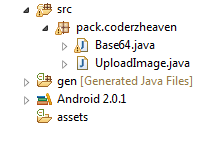
Now download a file from here which encodeBytes in Base64 Format. Put this file in the same package of UploadImage.java. See the screenshot.
Upload Image
Upload Image

Now the server part.
Create a folder named Upload_image_ANDROID in your htdocs folder and inside that create a file named upload_image.php and copy this code into it.

1<?php
2 $base=$_REQUEST['image'];
3 $binary=base64_decode($base);
4 header('Content-Type: bitmap; charset=utf-8');
5 $file = fopen('uploaded_image.jpg', 'wb');
6 fwrite($file, $binary);
7 fclose($file);
8 echo 'Image upload complete!!, Please check your php file directory……';
9?>
Now run your program and check the folder in which your php file resides.

Note: Make sure your server is running.


Here I am uploading the icon image itself.


If you want to upload another file in your SDCARD you have to change this line to give the exact path
Bitmap bitmap = BitmapFactory.decodeResource(getResources(),R.drawable.icon);
For example if I have to upload a file residing in my SDCARD I would change the path like this.
Bitmap bitmap = BitmapFactory.decodeFile(“/sdcard/android.jpg”);
This tutorial explains how to create an SDCARD and start the emulator with the SDCARD

and this tutorial explains how to put file inside your emulator SDCARD

Please comment if you didn’t get it right or you like this post.

Refferenced from : http://coderzheaven.com/2011/04/android-upload-an-image-to-a-server/

Thursday, 18 August 2011

Application that gets a html page Flickr, Explore interesting photos from the last 7 days in FlickrLand. and then parse it and finds the 9 image links


This application gets this html page: Flickr: Explore interesting photos from the last 7 days in FlickrLand... , parses it and finds the 9 image links.
It then sends a request for each of the images. Downloaded images are then displayed in the ImageViews.
Each time you press on the Connect button 9 new images appear.
Pressing on an image shows it larger in a second activity (note that the full image is not downloaded so the second activity just shows the thumbnail with its original size).

If you run this program you can see that all requests are handled in the background and that images appear whenever they are ready.

The TaskId plays an important role here. Each image request is sent with a TaskId between 0 to 8. This TaskId is later used to get the correct ImageView from the ImageViews array.

Code:
Sub Process_Globals
    Dim MainUrl As String
    MainUrl = "http://www.flickr.com/explore/interesting/7days/"
    Dim HttpClient1 As HttpClient
    Dim MainRequestId As Int
    MainRequestId = 100
    
End Sub

Sub Globals
    Dim btnConnect As Button
    Dim ImageView1 As ImageView
    Dim ImageView2 As ImageView
    Dim ImageView3 As ImageView
    Dim ImageView4 As ImageView
    Dim ImageView5 As ImageView
    Dim ImageView6 As ImageView
    Dim ImageView7 As ImageView
    Dim ImageView8 As ImageView
    Dim ImageView9 As ImageView
    Dim ivs() As ImageView
End Sub

Sub Activity_Create(FirstTime As Boolean)
    If FirstTime Then
        HttpClient1.Initialize("http")
    End If
    Activity.LoadLayout("1")
    ivs = Array As ImageView(ImageView1, ImageView2, ImageView3, ImageView4, _
        ImageView5, ImageView6, ImageView7, ImageView8, ImageView9)
    ResetImagesBackground
End Sub

Sub Activity_Resume

End Sub

Sub Activity_Pause (UserClosed As Boolean)

End Sub
Sub ResetImagesBackground
    For i = 0 To Activity.NumberOfViews - 1
        If Activity.GetView(i) Is ImageView Then Activity.GetView(i).Color = Colors.Black
    Next
    'We could have used the image views array (ivs) instead of going over all the views...
End Sub

Sub btnConnect_Click
    Dim request As HttpRequest
    request.InitializeGet(MainUrl)
    HttpClient1.Execute(request, MainRequestId)
    ProgressDialogShow("Fetching data...")
End Sub

Sub Http_ResponseSuccess (Response As HttpResponse, TaskId As Int)
    Log(TaskId & ": success")
    If TaskId = MainRequestId Then 'Fetch the main page
        Response.GetAsynchronously("MainResponse", _ 
            File.OpenOutput(File.DirInternalCache, "page.html", False), True, MainRequestId)
    Else 'One of the images requests has arrived, write the image to a file in the background
        Response.GetAsynchronously("ImageResponse", _ 
            File.OpenOutput(File.DirInternalCache, "image" & TaskId, False), True, TaskId)
    End If
End Sub
Sub Http_ResponseError (Reason As String, StatusCode As Int, TaskId As Int)
    ToastMessageShow("Error. TaskId: " & TaskId & ", Reason: " & Reason & ", StatusCode: " & StatusCode, True)
    ProgressDialogHide
End Sub
'
Sub ImageResponse_StreamFinish (Success As Boolean, TaskId As Int)
    If Success = False Then
        Msgbox(LastException.Message, "Error")
        Return
    End If
    Dim bd As BitmapDrawable 'load the image 
    bd.Initialize(LoadBitmap(File.DirInternalCache, "image" & TaskId)) 
    ivs(TaskId).Background = bd 'set the image to an ImageView
End Sub

Sub MainResponse_StreamFinish (Success As Boolean, TaskId As Int)
    ResetImagesBackground
    HandleMainPage (File.OpenInput(File.DirInternalCache, "page.html"))
End Sub
'Parse the main page and find the 9 image links
Sub HandleMainPage (in As InputStream)
    start = DateTime.Now
    Dim TextReader1 As TextReader
    TextReader1.Initialize(in)
    Dim pattern, class As String
    class = "<td class=" & QUOTE & "Photo" & QUOTE & ">"
    pattern = "img src=\q([^q]+)\q".Replace("q", QUOTE)
    Dim links As List
    links.Initialize
    Dim line As String
    line = TextReader1.ReadLine
    Do While line <> Null
        If line.IndexOf(class) > -1 Then
            Dim link As String
            Dim m As Matcher
            m = Regex.Matcher(pattern, line)
            If m.Find Then
                links.Add(m.Group(1)) 'add the image link
            End If
        End If
        line = TextReader1.ReadLine
    Loop
    TextReader1.Close
    Log("done parsing main page: " & (DateTime.Now - start))
    For i = 0 To links.Size - 1 'send request for each image
        Dim request As HttpRequest
        request.InitializeGet(links.Get(i))
        HttpClient1.Execute(request, i)
    Next
    ProgressDialogHide
End Sub

'Show the second activity with the chosen image.
Sub img_Click
    Dim iv As ImageView
    iv = Sender
    Dim bd As BitmapDrawable
    bd = iv.Background
    Activity2.Bitmap1 = bd.Bitmap
    StartActivity(Activity2)
End Sub
referenced from : 
http://www.basic4ppc.com/forum/basic4android-getting-started-tutorials/6646-flickr-viewer.html


A new version of FlickrViewer is available based on HttpUtils: http://www.basic4ppc.com/forum/basic...html#post50919
The new code is simpler and more robust.
Attached Files
File Type: zipFlickrViewer.zip (7.2 KB, 290 views)

Http web services with an example Currency Converter


In this tutorial we will use the following web service to convert currencies:
http://www.webservicex.net/CurrencyC...ToCurrency=EUR


There are several important aspects in this application.
This tutorial will only briefly touch each topic.

FilesYou can add files to your project using the Files tab:


In our case we have two file. CountryCodes.txt is a text file containing the list of currencies. Each line contains exactly one value.
layout1.bal is the layout file created with the designer. Layout files are added automatically to the file manager.
Note that the layout file contains another two image files, the buttons arrows. These files are listed in the designer. If we remove layout1.bal they will be removed from the package as well.

The packaged files are also named assets. Locally they are stored under the Files sub folder.

This code reads the text file and stores the data in a list:
Code:
If FirstTime Then
        countries = File.ReadList(File.DirAssets, "CountryCodes.txt")
File.ReadList is a convenient method that opens a file and adds all its lines to a List. Files are always referenced by their folder and name.
The assets are referenced by the File.DirAssets value.
Android file system is case sensitive. Which means that image1.jpg is not the same as Image1.jpg (unlike Windows file system).

Structures

You can create new types or structures using the Type keyword. Later you can declare variables of these new types.
Types can hold any other objects, including other types and including themselves (and including arrays of all of these).
Structures will be covered more deeply in a different tutorial...
Structures are declared in one of the global subs.
Code:
Type MyTag (FromValue As EditText, ToValue As EditText, _
                 FromCurrency As Spinner, ToCurrency As Spinner)
    Dim CurrentTask As MyTag
This code declares a type that holds two EditTexts (textboxes) and two Spinners (Comboboxes).
We also declare a variable of that type named CurrentTask.
In the code you will see that we have another type named StateType which we use to store the current state.

All views have a property named Tag. You can set this property to any object you like.
We are using it together with the Sender keyword to handle both buttons with the same sub.

Libraries


As you can see in the image, the Libraries tab page shows a list of available libraries. The checked libraries are referenced. Note that you cannot remove the reference to the core library.

Adding additional libraries


Libraries are made of a pair of files. The xml file that describes the library and the jar file which holds the compiled code.
Additional libraries and updates to official libraries are available here: http://www.basic4ppc.com/forum/addit...icial-updates/
Note that only users who bought Basic4android can download these libraries.
To add a library to Basic4android all you need to do is to copy both files to a folder recognized by Basic4android.
By default this is the 'Libraries' folder that is usually located in: c:\Program Files\Anywhere Software\Basic4android\Libraries.
You can also configure an additional libraries folder by choosing Tools - Configure Paths. Note that the additional folder is scanned first for libraries. This means that you can update an existing library by putting the new files in the additional libraries folder (there is no need to delete the old files from the internal folder).

Http library

The Http library includes three objects.
HttpClient - This is the main object that executes and manages the requests and responses. The HttpClient can execute multiple requests concurrently.
It is very important to declare it as a Process global. The HttpClient handles requests that run in the background and it should not be tied to the activity life cycle.
Communication is done in two steps. First a connection is established by sending a HttpRequest object and then the response is read from the server.
The first step is always a non blocking action. It can take a long period till the connection is established and you do not want to make your application be non-responsive at this time. Note that Android has a special "Application not responding" dialog which allows the user to force close the application.

The second step, which is the consumption of the response can be either blocking or nonblocking. If you download a file for example you should probably choose the nonblocking option.

This code creates and sends the GET request.
Code:
Dim request As HttpRequest
    request.InitializeGet(URL & fromCountry & "&ToCurrency=" & toCountry)
    request.Timeout = 10000 'set timeout to 10 seconds
    If HttpClient1.Execute(request, 1) = False Then Return 'Will be false if their is already a running task (with the same id).
We are setting the timeout to 10 seconds which is quite short. The default is 30 seconds. The target web service is pretty unstable, which makes things more interesting. I prefer it to fail fast in our case.

HttpClient.Execute method receives two parameters. The first is the request object and the second is the Task ID. This integer will be passed back in the ResponseSuccess or ResponseError events.
It allows you to differentiate between different tasks that may be running in the background.
HttpClient.Execute will return false if their is already a running task with the same ID. This helps you prevent unnecessary multiple requests.
You can also check the status of running tasks with the IsBackgroundTaskRunning keyword.

Once the response is ready, ResponseSuccess or ResponseError will be raised. If things went well, we can now read the response, find the rate and display it. Otherwise we display a "toast" message with the error message.

As I wrote above, this specific web service seems to be unstable so your experience may vary.

State

As discussed in the life cycle tutorial we are required to save and restore the state of the application. In our case the state is made of the values in the text boxes and the current selected currencies.

The following type and variable are declared in Sub Process_Globals:
Code:
Type StateType (TextUp As String, TextDown As String, _
        IndexUp As Int, IndexDown As Int)
    Dim State As StateType 'This must be a process variable as it stores the state
                            'and should not be released when the activity is destroyed.
On the first run we set its values with the default values we want:
Code:
Sub ResetState
    'set the starting state
    State.TextUp = 1
    State.TextDown = ""
    State.IndexUp = 0 'USD
    State.IndexDown = 43 'Euro
End Sub
Later we save and read it as needed:
Code:
Sub Activity_Resume
    txtUp.Text = State.TextUp
    txtDown.Text = State.TextDown
    spnrUp.SelectedIndex = State.IndexUp
    spnrDown.SelectedIndex = State.IndexDown
End Sub

Sub Activity_Pause (UserClosed As Boolean)
    If UserClosed Then
        ResetState 'reset the state to the initial settings.
    Else
        State.TextUp = txtUp.Text
        State.TextDown = txtDown.Text
        State.IndexUp = spnrUp.SelectedIndex
        state.IndexDown = spnrDown.SelectedIndex
    End If
End Sub
In Activity_Resume we read the values and set the required views. Note that Activity_Resume is called right after Activity_Create. So it will also be called on the first time we run the application.

In Activity_Pause we save the value in the state object (which is a process variable).
Note that if the user pressed on the back key (which means that he wants to close our application) we return the state to the initial state. Therefore the user will see a "clean new" application the next time he will run our application.

It is worth paying attention to this line:
Code:
CurrentTask.FromCurrency.SelectedItem.SubString2(0, 3)
CurrentTask is of type MyTag.
It has a field named FromCurrency which is of type Spinner.
Spinner has a property named SelectedItem which returns a String.
String has a method named Substring2.

Also note that this code is valid:
"abcd".Substring(2)
The complete code (file is also attached):
Code:
'Activity module
Sub Process_Globals
    Dim countries As List
    Dim URL As String
    URL = "http://www.webservicex.net/CurrencyConvertor.asmx/ConversionRate?FromCurrency="
    Dim HttpClient1 As HttpClient
    Type StateType (TextUp As String, TextDown As String, _
        IndexUp As Int, IndexDown As Int)
    Dim State As StateType 'This must be a process variable as it stores the state
                            'and should not be released when the activity is destroyed.
End Sub

Sub Globals
    Dim txtUp, txtDown As EditText
    Dim spnrUp, spnrDown As Spinner
    Dim btnUp, btnDown As Button
    Type MyTag (FromValue As EditText, ToValue As EditText, _
                 FromCurrency As Spinner, ToCurrency As Spinner)
    Dim CurrentTask As MyTag
End Sub
Sub ResetState
    'set the starting state
    State.TextUp = 1
    State.TextDown = ""
    State.IndexUp = 0 'USD
    State.IndexDown = 43 'Euro
End Sub

Sub Activity_Create(FirstTime As Boolean)
    If FirstTime Then
        Log("************************")
        'load the list of countries
        countries = File.ReadList(File.DirAssets, "CountryCodes.txt")
        'initialize the HttpClient object which is responsible for all communication.
        HttpClient1.Initialize("HttpClient1")
        ResetState
    End If
    
    Activity.LoadLayout("layout1")
    spnrUp.AddAll(countries)
    spnrDown.AddAll(countries)
    
    Dim t1 As MyTag
    t1.FromValue = txtUp
    t1.ToValue = txtDown
    t1.FromCurrency = spnrUp
    t1.ToCurrency = spnrDown
    btnDown.Tag = t1
    
    Dim t2 As MyTag
    t2.FromValue = txtDown
    t2.ToValue = txtUp
    t2.FromCurrency = spnrDown
    t2.ToCurrency = spnrUp
    btnUp.Tag = t2
End Sub

Sub Activity_Resume
    txtUp.Text = State.TextUp
    txtDown.Text = State.TextDown
    spnrUp.SelectedIndex = State.IndexUp
    spnrDown.SelectedIndex = State.IndexDown
End Sub

Sub Activity_Pause (UserClosed As Boolean)
    If UserClosed Then
        ResetState 'reset the state to the initial settings.
    Else
        State.TextUp = txtUp.Text
        State.TextDown = txtDown.Text
        State.IndexUp = spnrUp.SelectedIndex
        state.IndexDown = spnrDown.SelectedIndex
    End If
End Sub
Sub btn_Click
    Dim btn As Button
    btn = Sender 'Fetch the actual button that raised this event.
    CurrentTask = btn.Tag 'Take the object from its Tag property.
    Dim fromCountry, toCountry As String
    fromCountry = CurrentTask.FromCurrency.SelectedItem.SubString2(0, 3) 'get the currency code
    toCountry = CurrentTask.ToCurrency.SelectedItem.SubString2(0, 3)
    
    Dim request As HttpRequest
    request.InitializeGet(URL & fromCountry & "&ToCurrency=" & toCountry)
    request.Timeout = 10000 'set timeout to 10 seconds
    If HttpClient1.Execute(request, 1) = False Then Return 'Will be false if their is already a running task (with the same id).
    ProgressDialogShow("Calling server...")
End Sub
Sub HttpClient1_ResponseSuccess (Response As HttpResponse, TaskId As Int)
    Log("ResponseSuccess")
    ProgressDialogHide
    Dim result As String
    result = Response.GetString("UTF8") 'Convert the response to a string
    Log(result)
    Dim rate As Double
    'Parse the result
    i = result.IndexOf(".NET/")
    If i = -1 Then
        Msgbox("Invalid response.", "Error")
        Return
    End If
    i2 = result.IndexOf2("<", i + 1)
    rate = result.substring2(i + 7, i2)
    Log("Rate = " & rate)
    If IsNumber(CurrentTask.FromValue.Text) = False Then
        Msgbox("Please enter a valid number.", "Error")
        Return
    End If
    'Set the answer
    
    CurrentTask.ToValue.Text = Round2(CurrentTask.FromValue.Text * rate, 2)
End Sub
Sub HttpClient1_ResponseError (Reason As String, StatusCode As Int, TaskId As Int)
    Log(Reason)
    Log(StatusCode)
    ProgressDialogHide
    msg = "Error connecting to server."
    If reason <> Null Then msg = msg & CRLF & Reason
    ToastMessageShow (msg, True)
End Sub
Consider using the new HttpUtils framework for simpler handling of web services: http://www.basic4ppc.com/forum/basic...html#post50919
Attached Files
File Type: zipCurrencyConverter.zip (9.8 KB, 447 views)

Wednesday, 17 August 2011

Why "Conversion to Dalvik Format Failed with Error" Occurs!!!


When i have started working on Android Applications, I was very new to Android, Java programming and Eclipse. I just started working without even understanding android platform. I just started programming using Android Development SDK and documentation.Every thing was fine in the beginning till i faced a error in my project, Actually here i have to use some open source lib to parse different file header. For this i have googled and find lot of java lib (jar files). But when i have tried to use these library in my Android application i was getting exception i.e. “conversion to dalvik format failed with error ”. I searched on internet and find very common answer that clean your project and rebuild it and like this and it worked with some library and not with others.

This error also occurs when you change target platform or changing workspace or some library and it will be fixed by doing clean and rebuild.
But i was not able to find exact reason behind this error what is dalvik format then have realized that i need to read some documentation of android application framework and about dalvik virtual Machine.
What is Dalvik Format ?
Dalvik is a virtual machine on Android OS which is register based while other Virtual machines are stack based. Dalvik Virtual Machine is a register based VM is optimized for low memory and processing retirements and OS can run multiple instance of VM to provide isolation of processes. Dalvik VM actually not executes java byte code classes but it executes Dex (Dalvik Execution Format) format classes.
To convert java class to Dex android sdk provides DX tool which converts regular java byte code classes to .dex format classes. Dex file contains more than one class and usually size is less than normal java compressed jar file.
Why “conversion to dalvik format failed with error 1” occurs?
But this DX tool can not convert all java classes to dex format then this error occurs. In my case when i was getting error because there are some class which are using Java standard edition references and can not converted to dex. Generally it will convert all J2Me lib to dex format.
Second scenario is that when you are changing target platform or work space then there might be some inconsistency in build and it was fixed by just cleaning and rebuilding workspace.
Solution
So please clean your project and rebuild it when you are getting this exception but when some classes which can not be converted to dex format are used then you can not use those classes in Android application.

Referenced by : http://bimbim.in/post/2010/09/24/Reason-of-Conversion-to-dalvik-format-failed-with-error-1.aspx

Calling .net WebService with Complex Types in Android App using KSoap


As discussed in previous post, Calling web service on Android is possible with KSOAP2 (ksoap2-android-assembly-2.4-jar-with-dependencies.jar)  or you have to write your own soap message formatter and can make http call using android apache http classes.

But here in this post, i am going to explain calling web service using ksoap lib for dotnet service. This web service is hosted at http://us4.iitsw.com/Sample/TestService.asmx.

Firstly i will brief web service which i will use to explain web service calling.
I have created one serializable class Person with 4 attributes of different types in asp.net

[Serializable]

public class Person
{
    private string _name = string.Empty;
    private int _age = 0;
    private float _salary = 100000.0f;
    private DateTime? _dob = new DateTime(1980, 01, 15);

    public float Salary
    {
        get { return _salary; }
        set { _salary = value; }
    }
    public DateTime? Dob
    {
        get { return _dob; }
        set { _dob = value; }
    }

    public int Age
    {
        get { return _age; }
        set { _age = value; }
    }
    public string Name
    {
        get { return _name; }
        set { _name = value; }
    }

}

and create two web method in web service GetSingle and SetValue.
public class TestService : System.Web.Services.WebService

{

    [WebMethod]

    public string HelloWorld()
    {
        return "Hello World";
    }

    [WebMethod]

    public Person GetSingle()
    {
        Person person = new Person();
        person.Name = "mohsin";
        person.Age = 24;
        person.Dob = new DateTime(1987, 01, 17);
        person.Salary = 25000f;

        return person;
    }

    [WebMethod]

    public bool SetValue(Person value)
    {
        bool result = false;
        if (value != null)
        {
            result = true;
        }

        return result;
    }
}

One takes Person as input parameter and other return Person object.

You can see wsdl for web service by http://us4.iitsw.com/Sample/TestService.asmx?wsdl or just by using http://us4.iitsw.com/Sample/TestService.asmx in browser you can see method list and by clicking method name you can see all details of that method.

Now i will explain how to call this web service method in Android using Ksoap 2. Although this lib has some bug and limitation but it is very useful.

In android application first we have to create a java class for Web service Person structure and we have to implement KvmSerializable interface in this class. KvmSerializable is used to transform soap message by ksoap library.

package com.iitsw;

import java.util.Date;
import java.util.Hashtable;
import org.ksoap2.serialization.KvmSerializable;
import org.ksoap2.serialization.PropertyInfo;
import org.ksoap2.serialization.SoapObject;

public class Person implements KvmSerializable
{
    public static Class PERSON_CLASS = Person.class;
    private String _name = "";
    private int _age = 0;
    private float _salary = 100000.0f;
    private Date _dob = new Date(1980, 01, 15);

    public Person()
    {
    }

    public Person(SoapObject obj)
    {
        this._name = obj.getProperty("Name").toString();
        this._age = Integer.parseInt(obj.getProperty("Age").toString());
        this._salary = Float.parseFloat(obj.getProperty("Salary").toString());

        String dob = obj.getProperty("Dob").toString();
        // Change date string according to your local
        String[] parts = dob.split("T")[0].split("-");
        this._dob = new Date(Date.UTC(Integer.parseInt(parts[0]), Integer
                .parseInt(parts[1]), Integer.parseInt(parts[2]), 0, 0, 0));
    }

    /**
     * @return the _name
     */
    public String get_name()
    {
        return _name;
    }

    /**
     * @param name
     *            the _name to set
     */
    public void set_name(String name)
    {
        _name = name;
    }

    /**
     * @return the _age
     */
    public int get_age()
    {
        return _age;
    }

    /**
     * @param age
     *            the _age to set
     */
    public void set_age(int age)
    {
        _age = age;
    }

    /**
     * @return the _salary
     */
    public float get_salary()
    {
        return _salary;
    }

    /**
     * @param salary
     *            the _salary to set
     */
    public void set_salary(float salary)
    {
        _salary = salary;
    }

    /**
     * @return the _dob
     */
    public Date get_dob()
    {
        return _dob;
    }

    /**
     * @param dob
     *            the _dob to set
     */
    public void set_dob(Date dob)
    {
        _dob = dob;
    }

    /* (non-Javadoc)
     * @see org.ksoap2.serialization.KvmSerializable#getProperty(int)
     */

    @Override
    public Object getProperty(int index)
    {
        Object object = null;
        switch (index)
        {
        case 0:
        {
            object = this._name;
            break;
        }
        case 1:
        {
            object = this._age;
            break;
        }
        case 2:
        {
            object = this._salary;
            break;
        }
        case 3:
        {
            object = this._dob;
            break;
        }
        }
        return object;
    }

    /* (non-Javadoc)
     * @see org.ksoap2.serialization.KvmSerializable#getPropertyCount()
     */

    @Override
    public int getPropertyCount()
    {
        // TODO Auto-generated method stub
        return 4;
    }

    /* (non-Javadoc)
     * @see org.ksoap2.serialization.KvmSerializable#
     * getPropertyInfo(int, java.util.Hashtable,
     * org.ksoap2.serialization.PropertyInfo)
     */

    @Override
    public void getPropertyInfo(int index, Hashtable arg1,
            PropertyInfo propertyInfo)
    {
        // TODO Auto-generated method stub
        switch (index)
        {
        case 0:
        {
            propertyInfo.name = "Name";
            propertyInfo.type = PropertyInfo.STRING_CLASS;
            break;
        }
        case 1:
        {
            propertyInfo.name = "Age";
            propertyInfo.type = PropertyInfo.INTEGER_CLASS;
            break;
        }
        case 2:
        {
            propertyInfo.name = "Salary";
            propertyInfo.type = Float.class;
            break;
        }
        case 3:
        {
            propertyInfo.name = "Dob";
            propertyInfo.type = Date.class;
            break;
        }
        }
    }

    /* (non-Javadoc)
     * @see org.ksoap2.serialization.KvmSerializable#setProperty
     * (int, java.lang.Object)
     */

    @Override
    public void setProperty(int index, Object obj)
    {
        // TODO Auto-generated method stub
        switch (index)
        {
        case 0:
        {
            this._name = obj.toString();
            break;
        }
        case 1:
        {
            this._age = Integer.parseInt(obj.toString());
            break;
        }
        case 2:
        {
            this._salary = Float.parseFloat(obj.toString());
            break;
        }
        case 3:
        {
            this._dob = new Date(Date.parse(obj.toString()));
            break;
        }
        }
    }

}

I have created four attributes in this class as web service class and Implemented KvmSerializable 4 methods.

public int getPropertyCount(): return attribute count in our case it is 4.
public void getPropertyInfo(int index, Hashtable arg1, PropertyInfo propertyInfo): Set propertyInfo attribute name and type, see above code listing.
public Object getProperty(int index): Called by ksoap when formatting soap message.
public void setProperty(int index, Object obj): Called by ksoap when created instance of classes from soap message response.

Note: Please used same sequence while writing these method as you have used in getPropertyInfo method.
Now make call using ksoap library

package com.iitsw;

import java.io.IOException;
import org.ksoap2.SoapEnvelope;
import org.ksoap2.serialization.Marshal;
import org.ksoap2.serialization.MarshalDate;
import org.ksoap2.serialization.MarshalFloat;
import org.ksoap2.serialization.SoapObject;
import org.ksoap2.serialization.SoapSerializationEnvelope;
import org.ksoap2.transport.HttpTransportSE;
import org.xmlpull.v1.XmlPullParserException;
import bimbimin.android.webservice.dto.Person;

public class ServiceCall
{
    private static final String SOAP_ACTION =
        "http://tempuri.org/";
    private static final String NAMESPACE =
        "http://tempuri.org/";
    private static final String URL =
        "http://us4.iitsw.com/Sample/TestService.asmx";

    private boolean isResultVector = false;

    protected Object call(String soapAction,
            SoapSerializationEnvelope envelope)
    {
        Object result = null;
     
        final HttpTransportSE transportSE = new HttpTransportSE(URL);
     
        transportSE.debug = false;

        // call and Parse Result.
        try
        {
            transportSE.call(soapAction, envelope);
            if (!isResultVector)
            {
                result = envelope.getResponse();
            } else
            {
                result = envelope.bodyIn;
            }
        } catch (final IOException e)
        {
            // TODO Auto-generated catch block
            e.printStackTrace();
        } catch (final XmlPullParserException e)
        {
            // TODO Auto-generated catch block
            e.printStackTrace();
        } catch (final Exception e)
        {
            // TODO Auto-generated catch block
            e.printStackTrace();
        }
        return result;
    }

    public Person CallGetSingle()
    {
        final String sGetSingle = "GetSingle";

        // Create the outgoing message
        final SoapObject requestObject =
            new SoapObject(NAMESPACE, sGetSingle);
        // Create soap envelop .use version 1.1 of soap
        final SoapSerializationEnvelope envelope =
            new SoapSerializationEnvelope(
                SoapEnvelope.VER11);
        envelope.dotNet = true;
        // add the outgoing object as the request
        envelope.setOutputSoapObject(requestObject);
        envelope.addMapping(NAMESPACE,
                Person.PERSON_CLASS.getSimpleName(),
                Person.PERSON_CLASS);

        // call and Parse Result.
        final Object response = this.call(
                SOAP_ACTION + sGetSingle, envelope);
        Person result = null;
        if (response != null)
        {
            result = new Person((SoapObject) response);
        }

        return result;
    }


    public Boolean CallSetValue(Person param)
    {
        final String sSetValue = "SetValue";
        final String svalue = "value";
        // Create the outgoing message
        final SoapObject requestObject =
            new SoapObject(NAMESPACE, sSetValue);
        // Set Parameter type String
        requestObject.addProperty(svalue, param);
        // Create soap envelop .use version 1.1 of soap
        final SoapSerializationEnvelope envelope =
            new SoapSerializationEnvelope(
                SoapEnvelope.VER11);
        envelope.dotNet = true;
        // add the outgoing object as the request
        envelope.setOutputSoapObject(requestObject);
        envelope.addMapping(NAMESPACE,
                Person.PERSON_CLASS.getSimpleName(),
                Person.PERSON_CLASS);
        // Register Marshaler
        // For date marshaling
        Marshal dateMarshal = new MarshalDate();
        dateMarshal.register(envelope);
        // For float marshaling
        Marshal floatMarshal = new MarshalFloat();
        floatMarshal.register(envelope);
        // call and Parse Result.
        final Object response = this.call(
                SOAP_ACTION + sSetValue, envelope);
        Boolean result = null;
        if (response != null)
        {
            try
            {
                if (response != null
                        && response.getClass() ==
                            org.ksoap2.serialization.SoapPrimitive.class)
                {
                    result = Boolean.parseBoolean(response.toString());
                }
            } catch (Exception e)
            {
                // TODO: handle exception
                e.printStackTrace();
            }
        }

        return result;
    }
}


To call web service with ksoap you have to first create SoapSerializationEnvelope envelope. add soap request SoapObject , add class mapping and add type marshalar which are not given in PropertyInfo class.

        // Create the outgoing message
        final SoapObject requestObject =
            new SoapObject(NAMESPACE, sSetValue);
        // Set Parameter type String
        requestObject.addProperty(svalue, param);
        // Create soap envelop .use version 1.1 of soap
        final SoapSerializationEnvelope envelope =
            new SoapSerializationEnvelope(
                SoapEnvelope.VER11);
        envelope.dotNet = true;
        // add the outgoing object as the request
        envelope.setOutputSoapObject(requestObject);
        envelope.addMapping(NAMESPACE,
                Person.PERSON_CLASS.getSimpleName(),
                Person.PERSON_CLASS);
        // Register Marshaler
        // For date marshaling
        Marshal dateMarshal = new MarshalDate();
        dateMarshal.register(envelope);
        // For float marshaling
        Marshal floatMarshal = new MarshalFloat();
        floatMarshal.register(envelope);

and finally make http request using HttpTransportSE class

        final HttpTransportSE transportSE = new HttpTransportSE(URL);
     
        transportSE.debug = false;

        // call and Parse Result.
        try
        {
            transportSE.call(soapAction, envelope);
            if (!isResultVector)
            {
                result = envelope.getResponse();
            } else
            {
                result = envelope.bodyIn;
            }
        } catch (final IOException e)
        {
            // TODO Auto-generated catch block
            e.printStackTrace();
        }

Referenced by : http://bimbim.in/post/2010/10/08/Android-Calling-Web-Service-with-complex-types.aspx
Tuesday, 16 August 2011

Consuming .net Web Service from Android App using KSOAP

Here in this post im demonstrating steps to consume data from the .NET web service in your android app.

 In order to use .Net web Service from your android application you need to first download the ksoap2 android API. Follow the link to download ksoap2 API for android.

After downloading the API, extract the zip file to the file system. Open your Android Project and navigate to the Project Properties. In the project properties go to Java Build Path and say Add External JARs.

Add the reference to the extracted ksoap2-j2se-full-2.1.2.jar file from the downloaded API. You are now ready to use ksoap2 to connect to the .NET web service via Android.

Let’s assume a .NET web service with two methods “Hello World” that returns a string and “Add” that accepts two numbers and returns their sum. Following is the WSDL file of the web service.

From the above WSDL file we get the following Information about the web service:

NameSpace: http://localhost/TestWebService/
Web Service URl: http://TestServer/Test/Service.asmx
Method “Hello World” SoapAction URL: http://localhost/TestWebService/HelloWorld
Method “Hello World” Output Type: String
Method “Add” SoapAction URL: http://localhost/TestWebService/Add
Method Hello World Input Type: Int, Int
Method Hello World Output Type: Int

In order to use this Web Service with our android app:
Open the java file from where you would like to access the Web Service

Include the class library for ksoap2
import org.ksoap2.*;
import org.ksoap2.serialization.*;
import org.ksoap2.transport.*;
import org.w3c.dom.Text;

Define Web Service Properties in the class

private static final String NAMESPACE = “http://localhost/TestWebService/” ;
private static final String URL = ” http://TestServer/Test/service.asmx”;

private static final String HelloWorld_SOAP_ACTION = “http://localhost/TestWebService/HelloWorld”;
private static final String METHOD_NAME1 = “HelloWorld”;
private static final String Add_SOAP_ACTION = “http://localhost/TestWebService/Add”;
private static final String METHOD_NAME2 = “Add”;

Add methods to call the web service methods and retrieve the results

public void GetHelloWorld() {
SoapObject request = new SoapObject(NAMESPACE, METHOD_NAME1);
SoapSerializationEnvelope envelope =
new SoapSerializationEnvelope(SoapEnvelope.VER11);
envelope.dotNet = true;
envelope.setOutputSoapObject(request);

HttpTransportSE androidHttpTransport = new HttpTransportSE(URL);
try
{
androidHttpTransport.call(HelloWorld_SOAP_ACTION, envelope);
java.lang.String receivedString = (String)envelope.getResponse();
}
catch(Exception e)
{
e.printStackTrace();
}
}

public void GetAdd() {
SoapObject request = new SoapObject(NAMESPACE, METHOD_NAME2);

PropertyInfo num1 = new PropertyInfo();
num1.setName(“a”);
num1.setValue(5);
request.addProperty(num1);
PropertyInfo num2 = new PropertyInfo();
num2.setName(“b”);
num2.setValue(9);
request.addProperty(num2);

SoapSerializationEnvelope envelope =
new SoapSerializationEnvelope(SoapEnvelope.VER11);
envelope.dotNet = true;
envelope.setOutputSoapObject(request);

HttpTransportSE androidHttpTransport = new HttpTransportSE(URL);
try
{
androidHttpTransport.call(Add_SOAP_ACTION, envelope);
java.lang.Integer receivedInt = (Integer)envelope.getResponse();
}
catch(Exception e)
{
e.printStackTrace();
}
}

If you app require access to an array, you can use the following code:

ArrayList<String> a = new ArrayList<String>();
try
{
androidHttpTransport.call(SOAP_ACTION, envelope);
java.util.Vector<Object> receivedStrings = (java.util.Vector<Object>)envelope.getResponse();
if(receivedStrings != null)
{
for(Object curStrings : receivedStrings)
{
a.add(curStrings.toString());
}
}
}
catch(Exception e)
{
e.printStackTrace();
}

Referenced by: http://composedcrap.blogspot.com/2009/08/connecting-to-net-web-service-from.html